Setting Up Google Apps Email
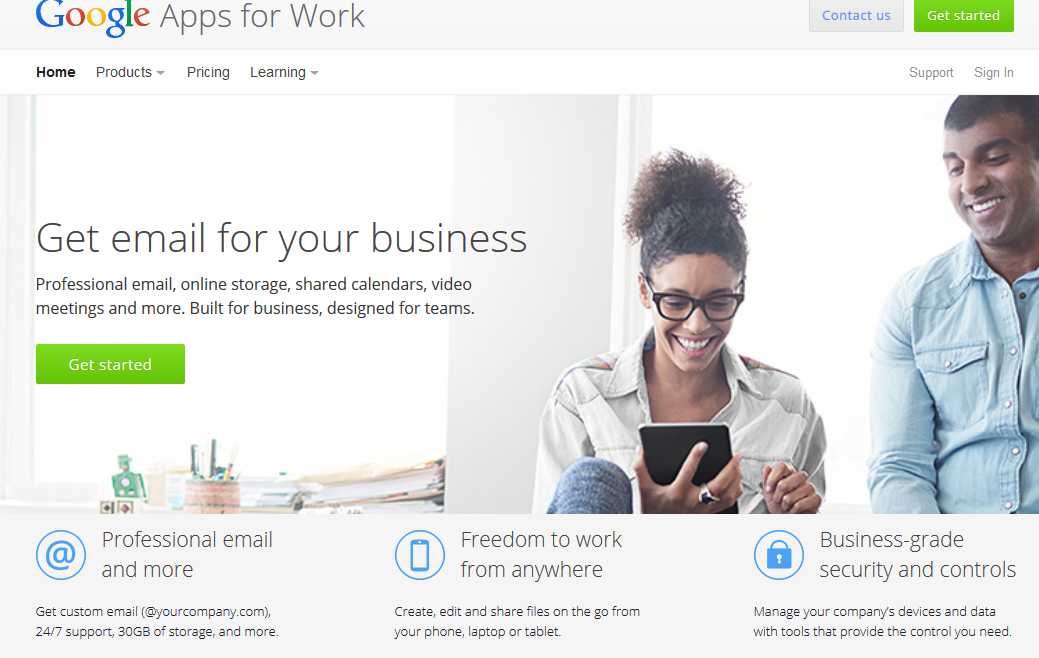
Using Namecheap.comBefore you do anything make sure you have signed up with Google Apps for your business email account.
When go through the sign up process make sure you specify the Domain name you registered as your primary domain for email.
To begin, you’ll need to login to your Name Cheap account.
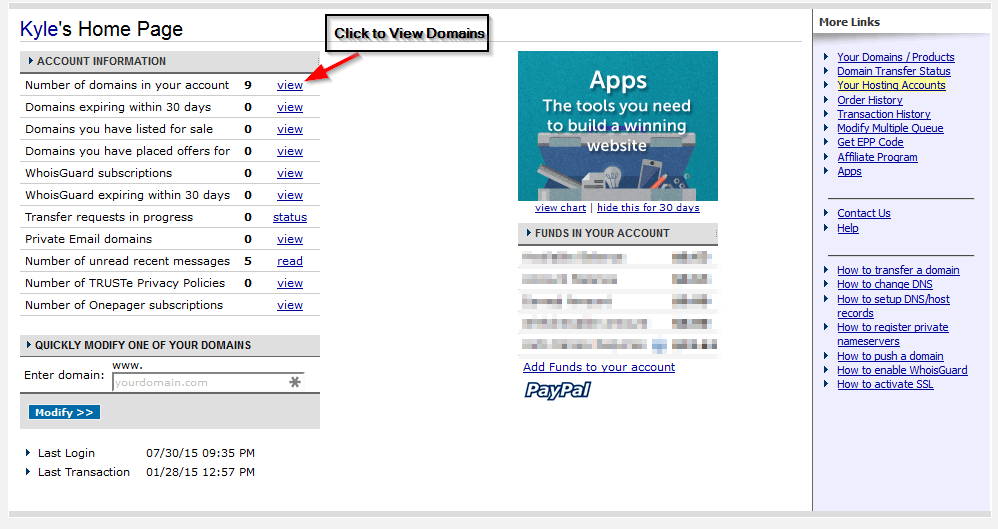
Once you login, you’ll be presented with this screen. Click the view link next to the number of domains on the account to see a listing of domains.
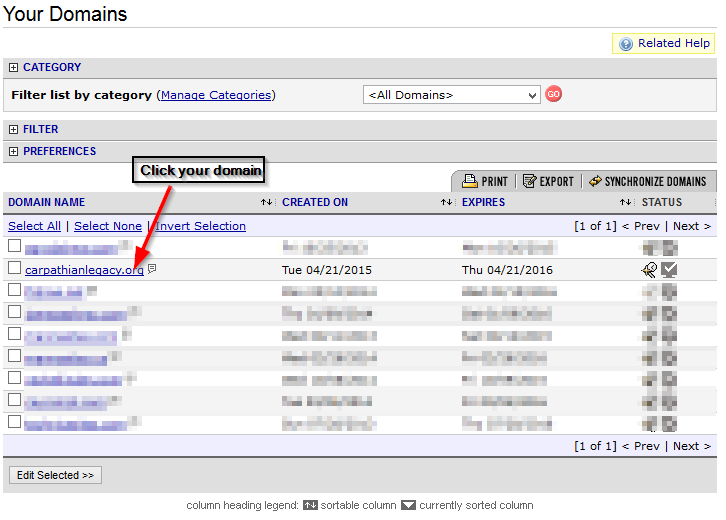
Next, click the Domain you want to point to Mannasites.
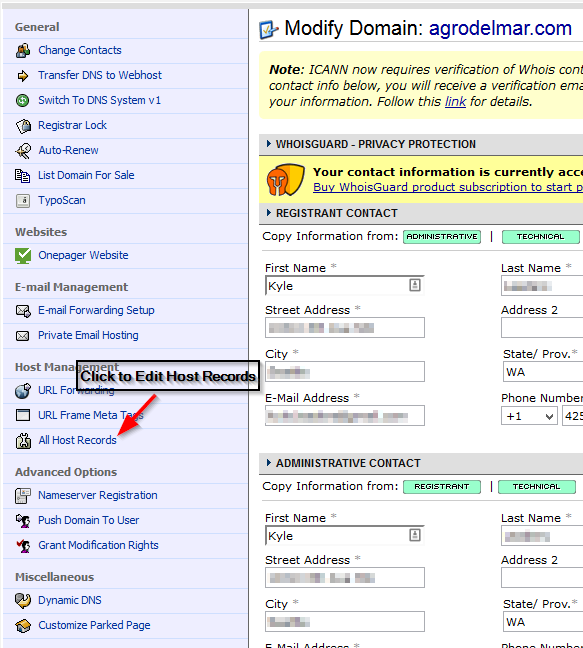
Once you click the domain, your side bar will have changed. On this sidebar click “All Host Records”.
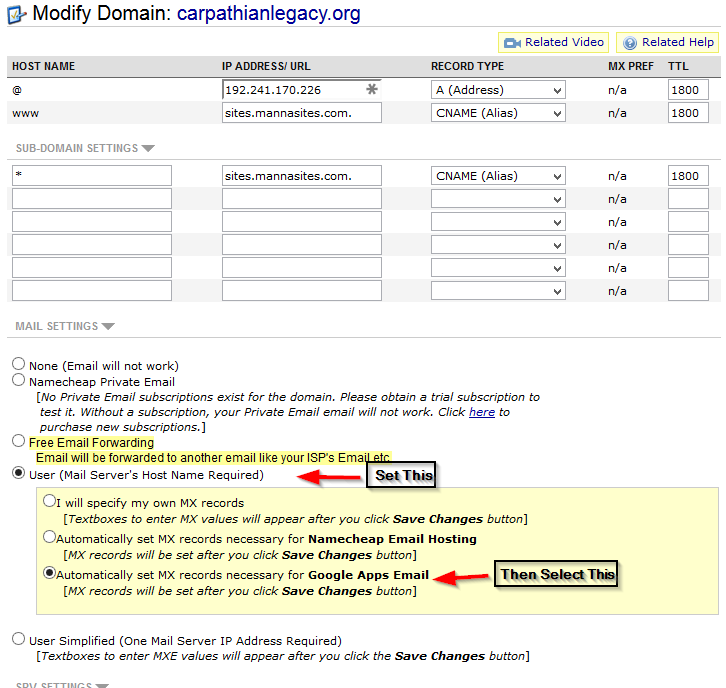
Lastly, scroll down to the bottom of the host records and select the “User” email radio button. Then, select the “Google Apps Email” option and click “Save Changes”.